Control guide
You don't need a three thousand euro radio and its two hundred page manual to begin. Here is every key and knob of Etere.AI, with a photo, what it does and a tip for someone starting from scratch.
The panel at a glance
Tap a number to jump to the control. This is the radio on the Mac; on iPhone the same controls sit in a column, and turning the phone sideways brings back the whole panel.
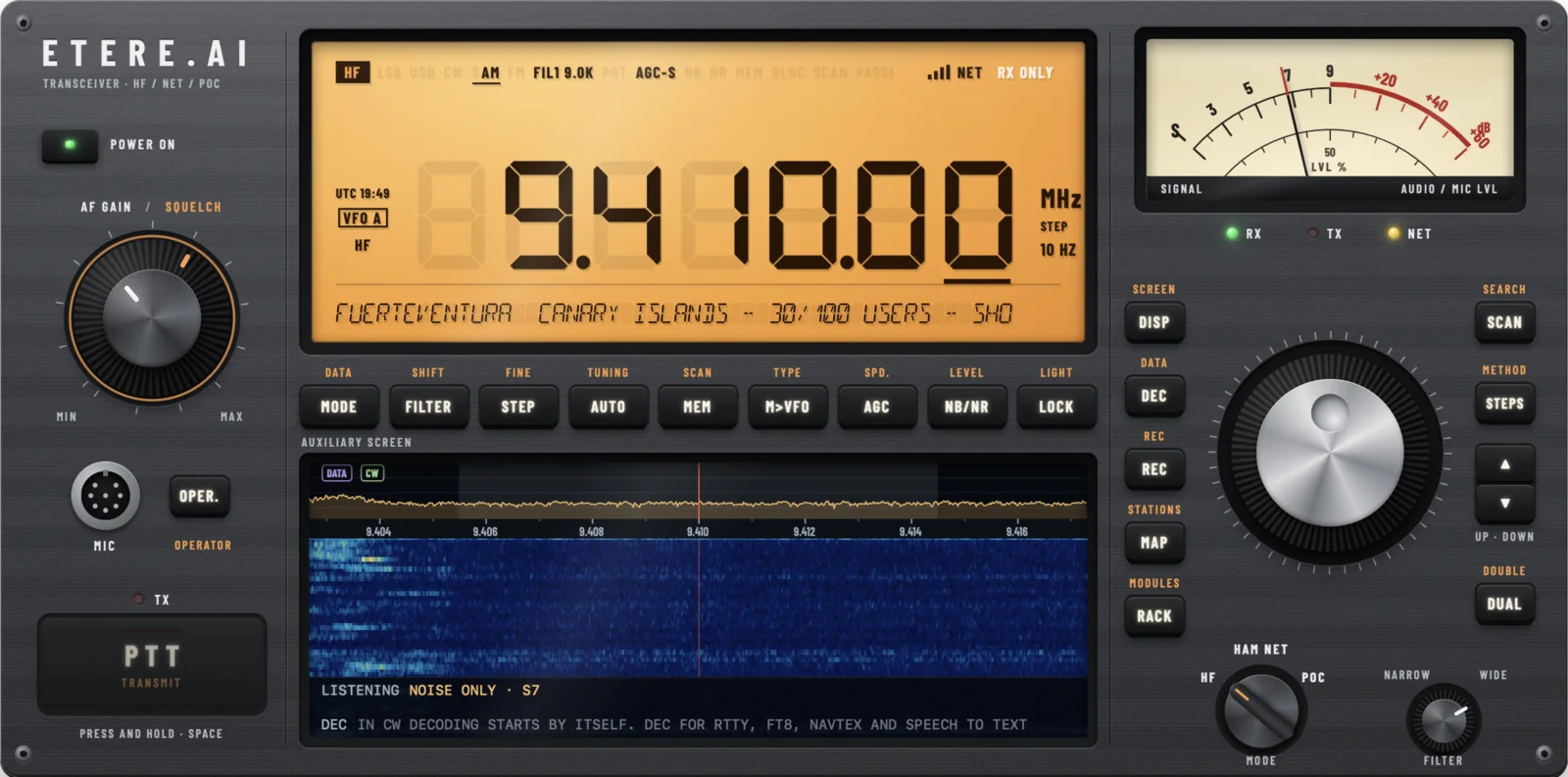 123456789101112131415161718192021222324252627
Your first listen, in five steps
- Press POWER ON. The lamps light up one after another, like on a real radio.
- With the MODE switch on HF, press MAP and pick a receiver near you on the map.
- Turn the big VFO knob: the frequency on the display changes and you hear stations go by.
- Set the volume with the AF GAIN knob. If the hiss bothers you, raise the SQUELCH.
- Nothing there? Press SCAN: the radio searches on its own and stops where someone is talking.
The three modes
- HF
- Shortwave from all over the world: international broadcasters, radio amateurs, ships, weather stations. You listen through real receivers spread across the planet (KiwiSDR, OpenWebRX). Here you only listen.
- HAM NET
- Amateur radio networks over the internet: M17 reflectors, EchoLink, AllStarLink nodes. Listening is free; to talk you need a call sign and an amateur radio licence, declared in Settings.
- POC
- Push to talk over the internet: Zello channels and Mumble servers. Here you can talk without a licence, like with a walkie-talkie.
Every control
Left: power, volume and transmit
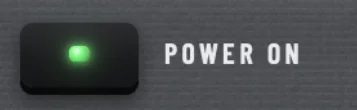
1POWER ON
Switches the radio on and off. At power on the NET, RX and TX lamps light in turn and the radio returns to the last frequency you heard.
Tip Etere.AI keeps playing with the phone in your pocket: switch it off when you're done to save battery.
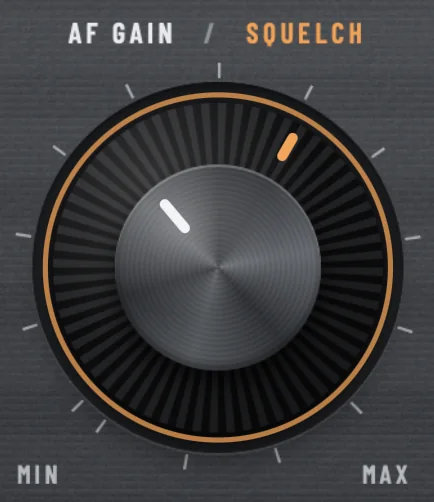
2AF GAIN / SQUELCH
Two knobs in one. The inner cap is the volume (AF GAIN). The outer ring is the squelch: below that threshold the radio stays silent, so you don't hear hiss when nobody talks.
Tip On HF keep the squelch at minimum until you learn to recognise signals: a weak one can sit under the threshold and disappear.
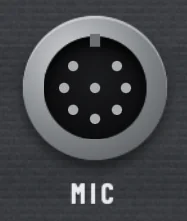
3MIC
The microphone socket, as on real radios. In Etere.AI the microphone is your Mac's or iPhone's: the socket is there to show where one would plug in.
4OPER.
Opens the operator: write what you want, in your own words, and it runs the radio. "Take me to an Italian station", "FT8 on 40 metres", "who is IV3ABC?". Without the AI operator it understands basic commands; with the AI operator on it understands free requests, and each question uses a credit (the first 20 are free).
Tip It's the fastest way to learn: ask "what am I listening to?" and it explains frequency, mode and signal.
5PTT · TX
The talk key. Hold it while you speak and release it to listen; the red TX lamp lights while you transmit. On the Mac the space bar does the same. It works in HAM NET (with call sign and licence) and in POC; on HF you only listen.
Tip Listen for a few seconds before talking: if the channel is busy, wait for the pause. On the air one person speaks at a time.
Centre: display, function keys and auxiliary screen
6Display
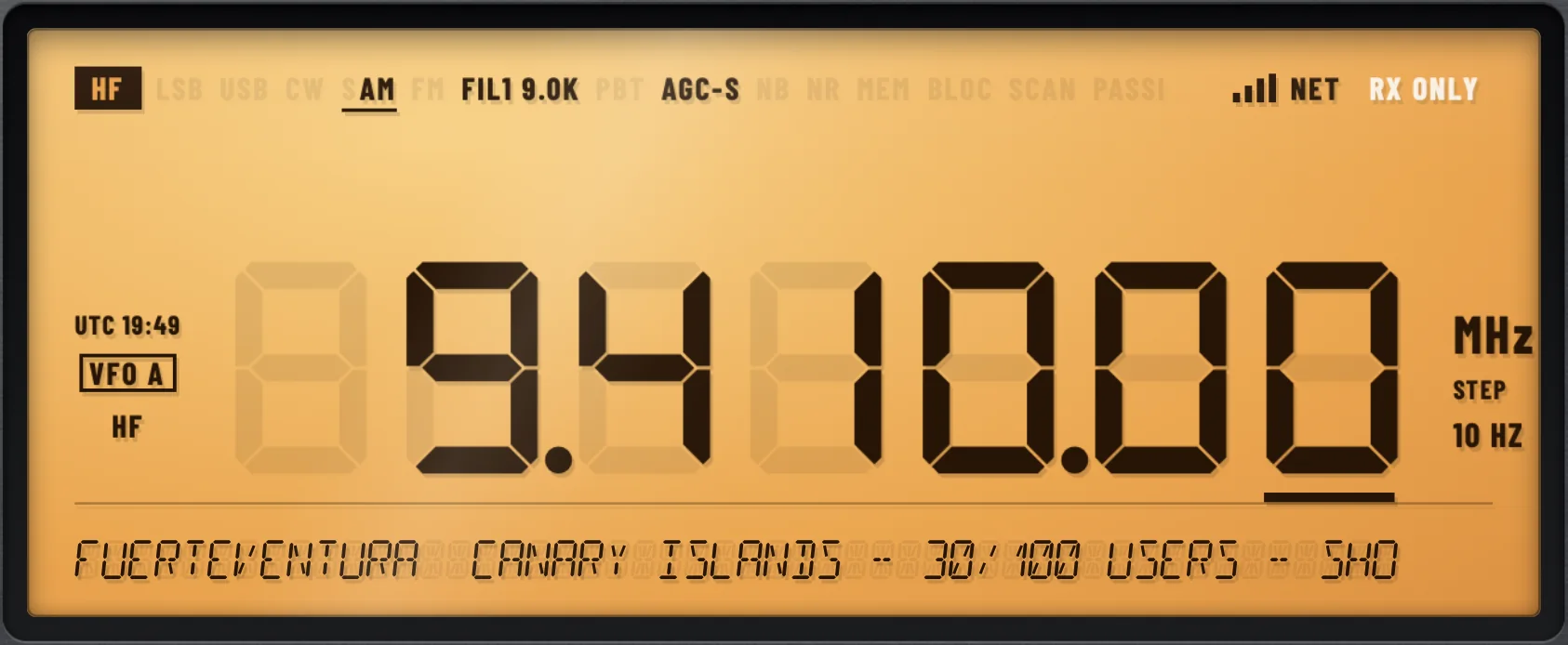
Shows frequency, mode, band, time and the receiver you're using. Tap it to choose a receiver, reflector or channel. Tap the frequency digits to type one in, tap the band to change it, tap the clock for UTC.
Tip Shortwave frequencies are written in kHz: 9,410 kHz is the BBC, 7,074 kHz is FT8 on 40 metres.
7MODE · DATA
Steps through the emission modes: AM, USB, LSB, CW, FM. The mode is how the voice rides on the wave: if a voice sounds like a cartoon duck, the mode is wrong.
Press and hold Pick a mode directly and open the band sheet.
Tip International broadcasters in AM; radio amateurs in LSB below 10 MHz and USB above; FT8 and the other digital modes in USB.
8FILTER · SHIFT
Switches between the three filters FIL1, FIL2 and FIL3, from widest to narrowest. A narrow filter removes interference from nearby stations, a wide one makes voices sound better.
Press and hold Opens the filter sheet with width, PBT and SHIFT, and clears the PBT (PBT CLR).
9STEP · FINE
Sets how far the frequency moves at each click of the VFO knob: big steps to cross a band, small steps to centre a station.
Press and hold FINE, a 1 Hz step, and RIT: move your listening a little without losing the main frequency. CLEAR resets it.
10AUTO · TUNING
Automatic tuning: the radio jumps to the nearest signal and centres it.
Press and hold Sets the right mode for that part of the band (from the band plan) and turns on automatic mode while scanning.
Tip AUTO is on the Mac panel and on iPhone held sideways; held upright, ask the operator.
11MEM · SCAN
Opens your saved stations. With its lamp on you're in memory mode: the knob steps through memories instead of the frequency.
Press and hold Enters and leaves memory mode, starts a memory scan, skips a channel in the scan.
Tip Save the stations you like: in the evening you can run through them all with a memory scan.
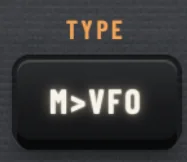
12M>VFO · TYPE
Puts the chosen memory on the VFO, or writes the frequency you're hearing into a new memory.
Press and hold Notes the listen in the log, opens the logbook and uses the MPAD notepad to jot down a frequency on the fly.
Tip The log is your listening diary: date, time, frequency, who you heard. From there you can also prepare QSL cards.
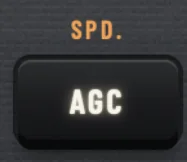
13AGC · SPD.
Automatic gain control: keeps the volume steady while the signal comes and goes. Switches between FAST, MID and SLOW.
Press and hold Picks the speed and opens the AGC and noise sheet.
Tip FAST for CW and quickly changing signals, SLOW for voice in AM and SSB.
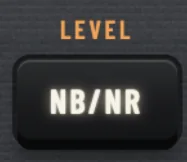
14NB/NR · LEVEL
NB removes impulse noise (sparks, motors, appliances); NR lowers the background hiss.
Press and hold Turns NB and NR on one at a time, picks the notch (AN automatic, MN manual) and opens the noise sheet.
Tip High NR makes voices metallic: raise it slowly until the hiss drops without spoiling the voice.
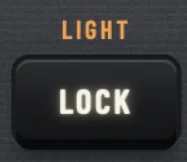
15LOCK · LIGHT
Locks the VFO knob, so the frequency doesn't move if you touch it by mistake.
Press and hold Picks the colour and brightness of the display backlight.
16Auxiliary screen
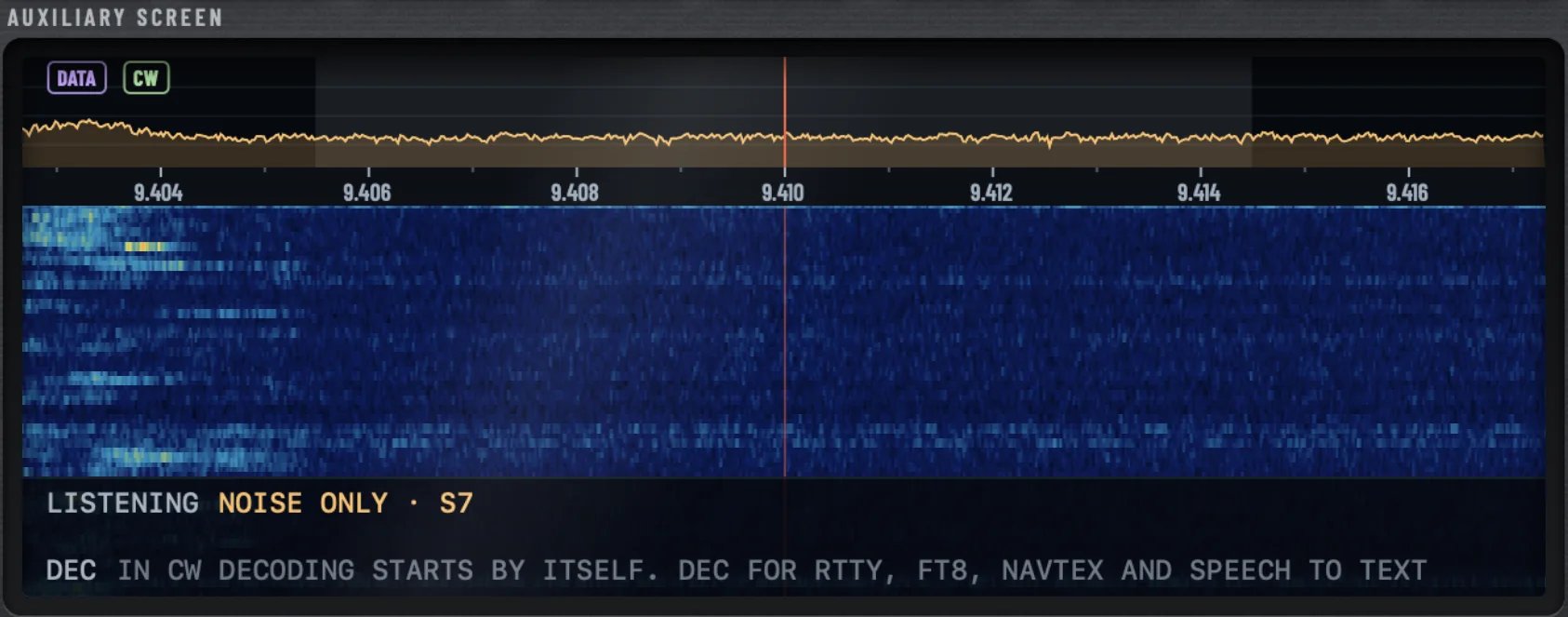
The window on the spectrum. On HF it shows the spectrum, the waterfall, the audio and the decoders' text; in HAM NET and POC the scope and the text. Tap a signal to go to it.
Press and hold Opens the SCOPE sheet (span, averaging) and freezes the picture with HOLD.
Tip In the waterfall each bright stripe is a station on the air: tap it and you hear it.
Right: meter, tuning and modes
17S-meter · RX TX NET
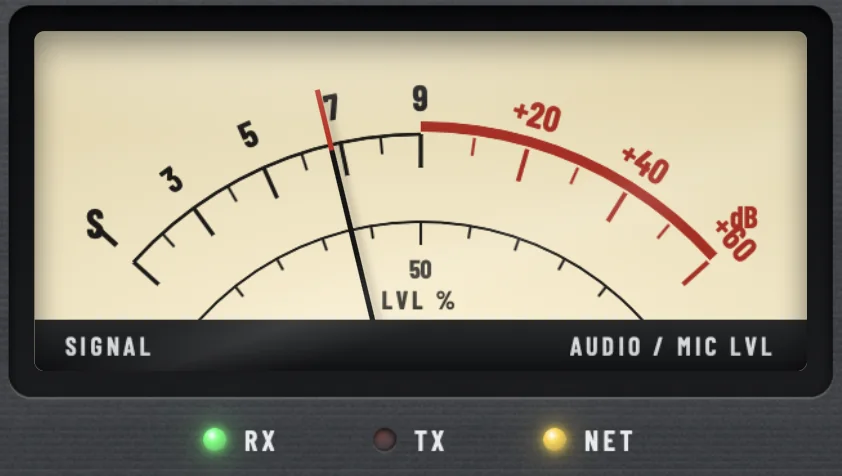
The meter measures signal strength, from S1 to S9 and beyond. Below it, three lamps: green RX while receiving, red TX while transmitting, yellow NET while the radio is connected.
Press and hold SPEECH: the radio reads out frequency, mode and signal.
Tip An S9 signal is loud and clean; below S3 you need patience and a narrow filter.
18DISP
Changes the view of the auxiliary screen: spectrum, waterfall, audio, scope, text. If the operator covers the screen, the first DISP closes it.
19DEC
Turns on a decoder and shows what comes in on the screen: CW, RTTY, PSK31, FT8, FreeDV, NAVTEX, weather fax, SSTV, and text of speech. With the Decoder unit you get them all; without it, CW and TEXT stay free.
Tip Try FT8 on 14,074 kHz in USB: within seconds you see call signs from around the world.
20REC
Records the audio you're receiving; press again to stop. Recordings play back from the recordings sheet.
Press and hold Opens the list of recordings.
21MAP
Opens station choice with the receiver map: web receivers on HF, reflectors and nodes in HAM NET, channels in POC.
Tip A receiver near you hears what you'd hear with an antenna at home; a faraway one lets you listen to the other side of the world.
22RACK
Opens your stack: the units mounted over the radio (SDR, reels, DSP, decoder, weather fax, NAVTEX). Each unit can be tried for ten minutes a day from when you switch it on.
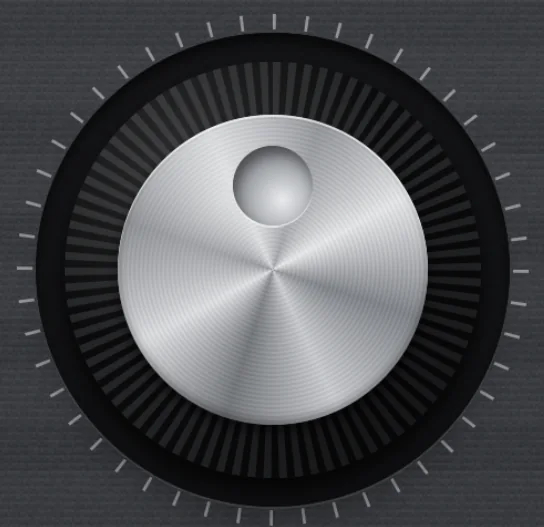
23VFO
The tuning knob. Turn it to change frequency; how far each click moves is set by STEP. On the Mac it also turns with the scroll wheel or trackpad.
Tip Turn slowly: in SSB a voice becomes clear only when you're right on frequency, within a few tens of hertz.
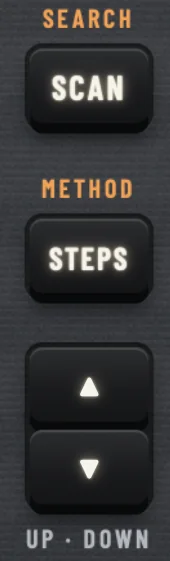
24SCAN · VOICE/STEPS · ▲▼
SCAN starts and stops scanning. VOICE stops only where someone is talking; STEPS walks the band one step at a time. The arrows go to the next or previous station.
Press and hold On SCAN, opens the scan options.
Tip Voice scan is the easiest way to find someone talking on a band you don't know.
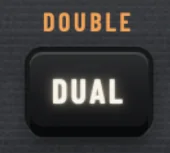
25DUAL
The dual receiver: MAIN and SUB together, two frequencies at once. On the auxiliary screen you choose which one the knob moves, swap MAIN and SUB and decide whom you hear.
Tip Mac only. Handy to follow one station while waiting for another to start.
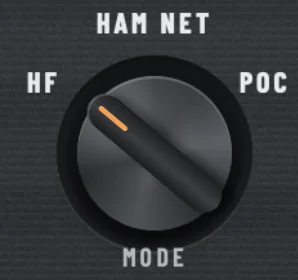
26MODE
The switch between the three modes: HF, HAM NET and POC. Turn it to move from shortwave to the amateur networks and the push to talk channels.
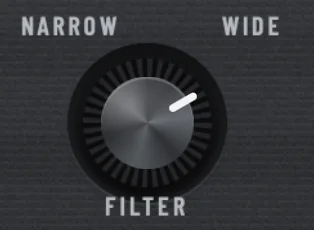
27FILTER · NARROW / WIDE
Widens or narrows the filter smoothly, without going through the three presets of the FILTER key.
Tip When a nearby station interferes, turn towards NARROW until only the one you want is left.
On iPhone
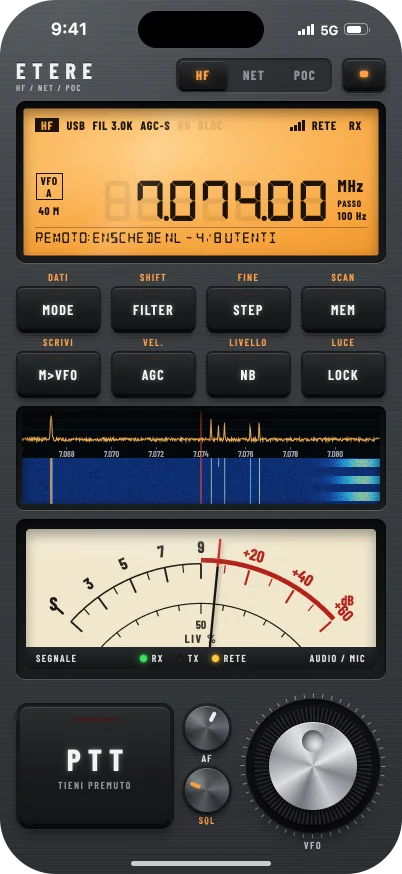
Held upright the controls sit in a column: display, eight function keys, auxiliary screen, S-meter, and at the bottom PTT, scan, volume, squelch and VFO. MAP and RACK are at the top beside the power key. Turn the phone sideways and the whole panel comes back, with AUTO. The pages (stations, saved, decode, log, settings) open in a sheet over the radio.
Words worth knowing
- kHz and MHz
- They measure frequency. 1 MHz is 1,000 kHz. Shortwave runs from 3 to 30 MHz.
- Band in metres
- Bands are also named by wavelength: 40 metres is around 7 MHz, 20 metres around 14 MHz.
- AM, USB, LSB
- Ways of sending voice. AM for broadcast radio; USB and LSB (sideband) for radio amateurs, more efficient for the same power.
- CW
- Morse code. The decoder turns it into text on the screen.
- Propagation
- Shortwave bounces off the ionosphere and travels around the world. By day the high bands work best (14, 18, 21 MHz), by night the low ones (3.5 and 7 MHz).
- Call sign
- A radio amateur's on-air name, like IV3ABC: the prefix tells which country it transmits from.
- QSL
- The card that confirms a contact or a listen. Etere.AI prepares it from the log.
Ready to listen to the world?
Etere.AI is free to download. Listening, schedule, memories, operator, log, CW and TEXT stay free forever.